 Kibo
iPhone only · uses Apple Shortcuts
Log every Apple Pay tap, automatically
Pay with your phone or watch and Kibo logs the merchant and the amount straight from Wallet. One automation, no typing. Two minutes to set up, one time.
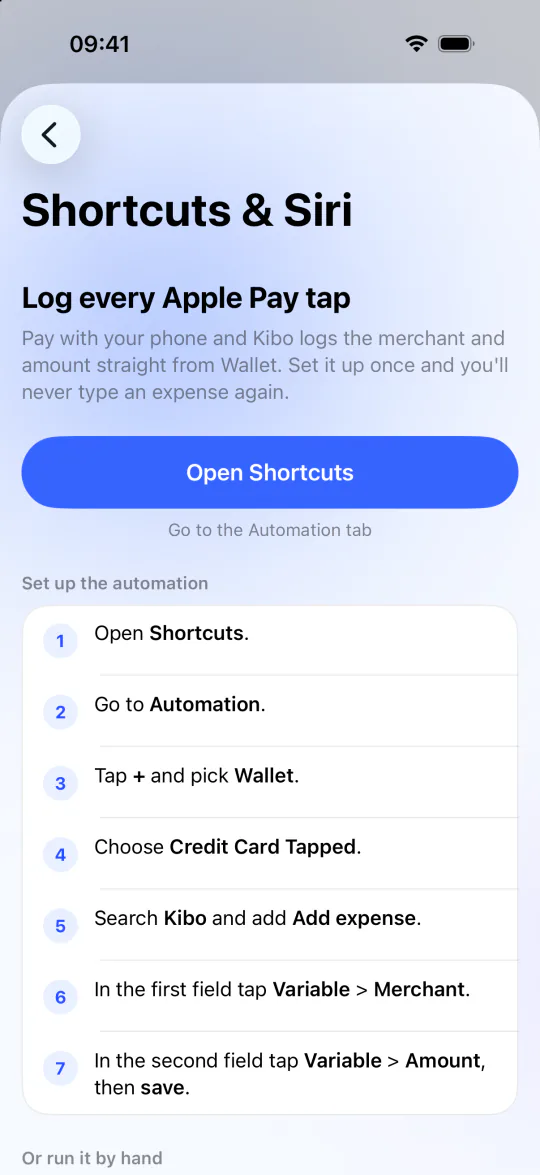
Set up the automation
Seven taps, once
The whole thing lives in Apple's Shortcuts app. Walk through these in order; each label below matches what's actually on screen.
- Open Shortcuts.
- Go to Automation.
- Tap + and pick Wallet.
- Choose Credit Card Tapped.
- Search Kibo and add Add expense.
- In the first field tap Variable → Merchant.
- In the second field tap Variable → Amount, then Save.
Or run it manually
Three more ways to fire it
The Apple Pay automation handles the tap-to-pay case. For everything else (cash, splits, that thing you bought online), pick whichever of these feels least like opening an app.

Works while Kibo is closed.The shortcut posts the merchant and amount straight to your account over HTTPS. Apple keeps the card data on your phone; Siri never sees it.
Something not working? Write to support@ki-bo.com. A human reads every email.